User preferences (gamepreferences)
In gamepreferences.json, you can define user preferences.
After editing the file
Studio reads the file whenever you modify it to load the updated values. If your changes do not appear, your JSON may contain an error. Click Reload game options configuration on the Manage game page to view the parsed JSON or an error message explaining what to fix.
General rules
User preferences customize the game interface for each player individually and have no effect on the table as a whole.
These preferences appear in the three-line hamburger menu in the top corner of the BGA menu. "Display game logs" and "Display tooltips" are included by default, but you can extend this list as shown below.
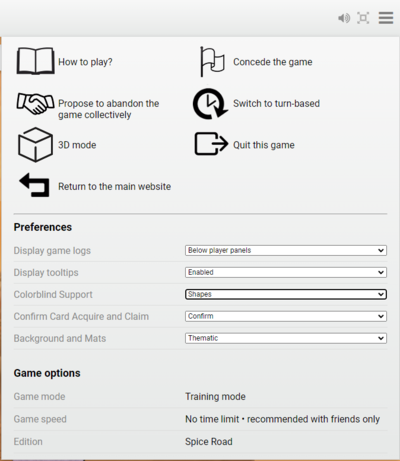
User preferences are a good place to add accessibility options, such as colorblind support.
{
  "100": {
    "name": "Colorblind Support",
    "needReload": true,
    "values": {
      "0": {
        "name": "None"
      },
      "1": {
        "name": "Numbers"
      },
      "2": {
        "name": "Shapes"
      }
    },
    "default": 0
  }
}
Limit the number of user preferences
Add a preference only if it significantly improves the interface for a large proportion of users. Individual players may request preferences for their own needs, but you cannot accommodate every request.
Too many preferences can overwhelm players and discourage them from reading the available options.
Definition
ID
The ID is the number used to read the preference value through the API. Do not change a preference ID once your game is in production. If you delete a preference, never reuse its ID.
Table options
The JSON format for user preferences resembles the format for table options, but the two serve different purposes. Preference IDs are independent of table option IDs and do not conflict with them. For example, preference 100 has nothing to do with table option 100.
You can use IDs in the range 100-199. They do not need to be consecutive.
name
The name of the preference, displayed as the label next to the dropdown. This string is marked for translation.
values
A map of the available values, with additional parameters for each value.
- id: The ID of the value returned by the API when you request a user preference. Use 0 and 1 for boolean values.
- name: The label for the numeric value. This string is marked for translation and appears in the dropdown.
needReload
If set to true, the game interface automatically reloads when the preference changes. The default is false if this property is omitted.
Avoid reloading the interface
Prefer updating the interface in response to preference changes without reloading the entire game interface.
default
The default value for this preference.
Choose the value that suits most players, as newcomers to your game may not check the user preferences immediately.
Accessing user preferences
On the front end
The BGA framework lets you read and update user preferences and register callbacks for preference changes. See User preferences in the game interface.
On the back end
The BGA framework lets you read user preferences on the server. See User preferences in the main game logic.